
MCP (Model Context Protocol)
Desktop only
MCP is only available in the Dessix desktop app. It is not supported in the web version.
MCP is a standard protocol that lets AI clients (like Cursor and Claude Code) safely access external tools and data.
With MCP enabled in Dessix, you can read and manage your workspace content directly from these AI clients, continue previous topic discussions, and use your preset actions.
What it supports
With MCP enabled, you can manage Dessix content directly from an AI client:
- View, create, and update workspaces.
- Search, read, create, edit, delete, and restore notes and other content.
- Create, rename, move, and delete
folders. - Move content into a
folder, or see what afoldercontains. - Continue previous
topicdiscussions, or use savedactions/scenes.
Quick setup
Make sure the Dessix desktop app is open and you're signed in, then configure your AI client with the steps below.
Recommendation
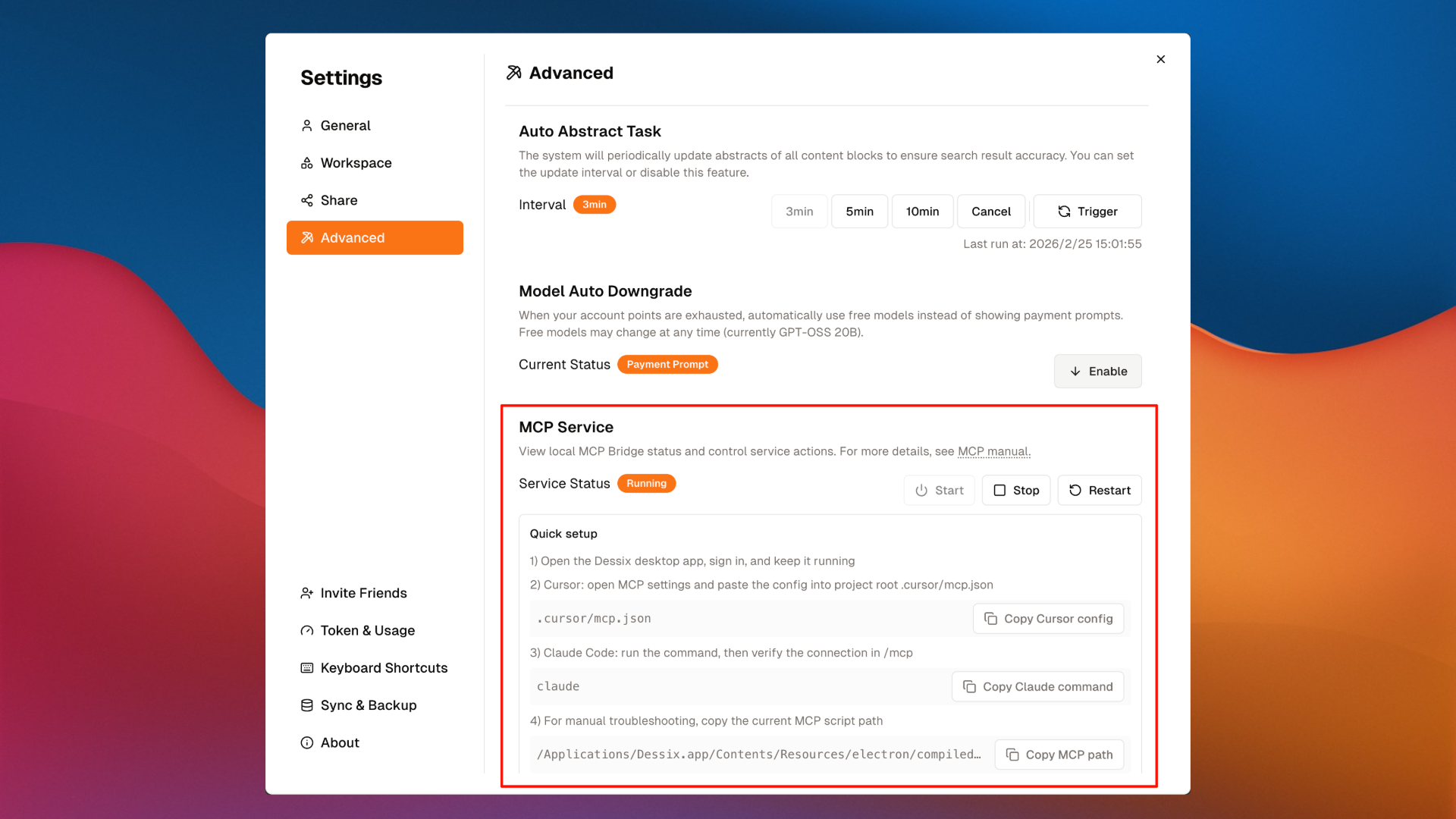
Copy the config directly from the Dessix desktop app — don't type paths manually.
- Open
Settings → Advanced → MCP Service - Click
Copy Cursor configorCopy Claude command - Paste into your client and you're done
Cursor
Paste the copied config into the .cursor/mcp.json file in your project root.
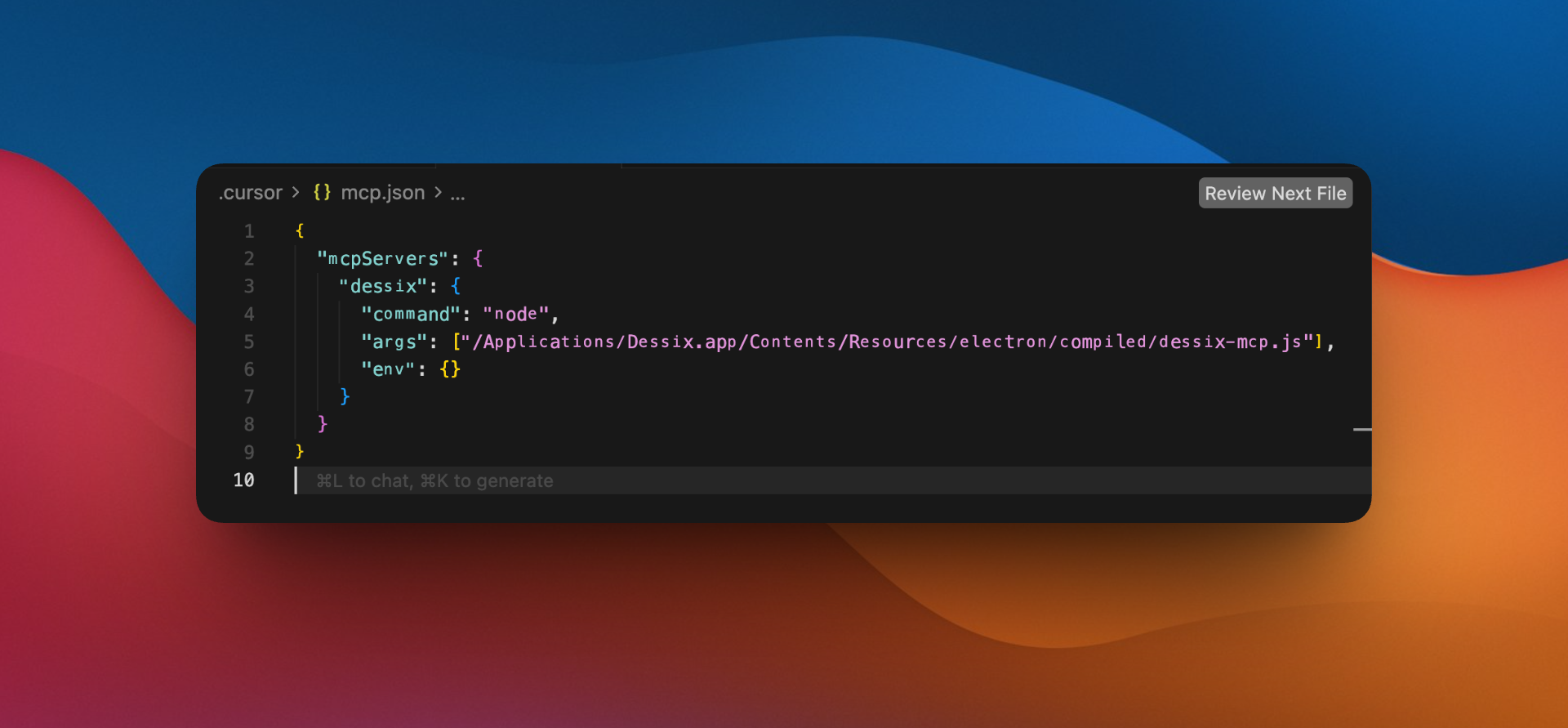
Reference structure (always use the actual config copied from the app):
{
  "mcpServers": {
    "dessix": {
      "command": "node",
      "args": ["<path generated by the app>"],
      "env": {}
    }
  }
}
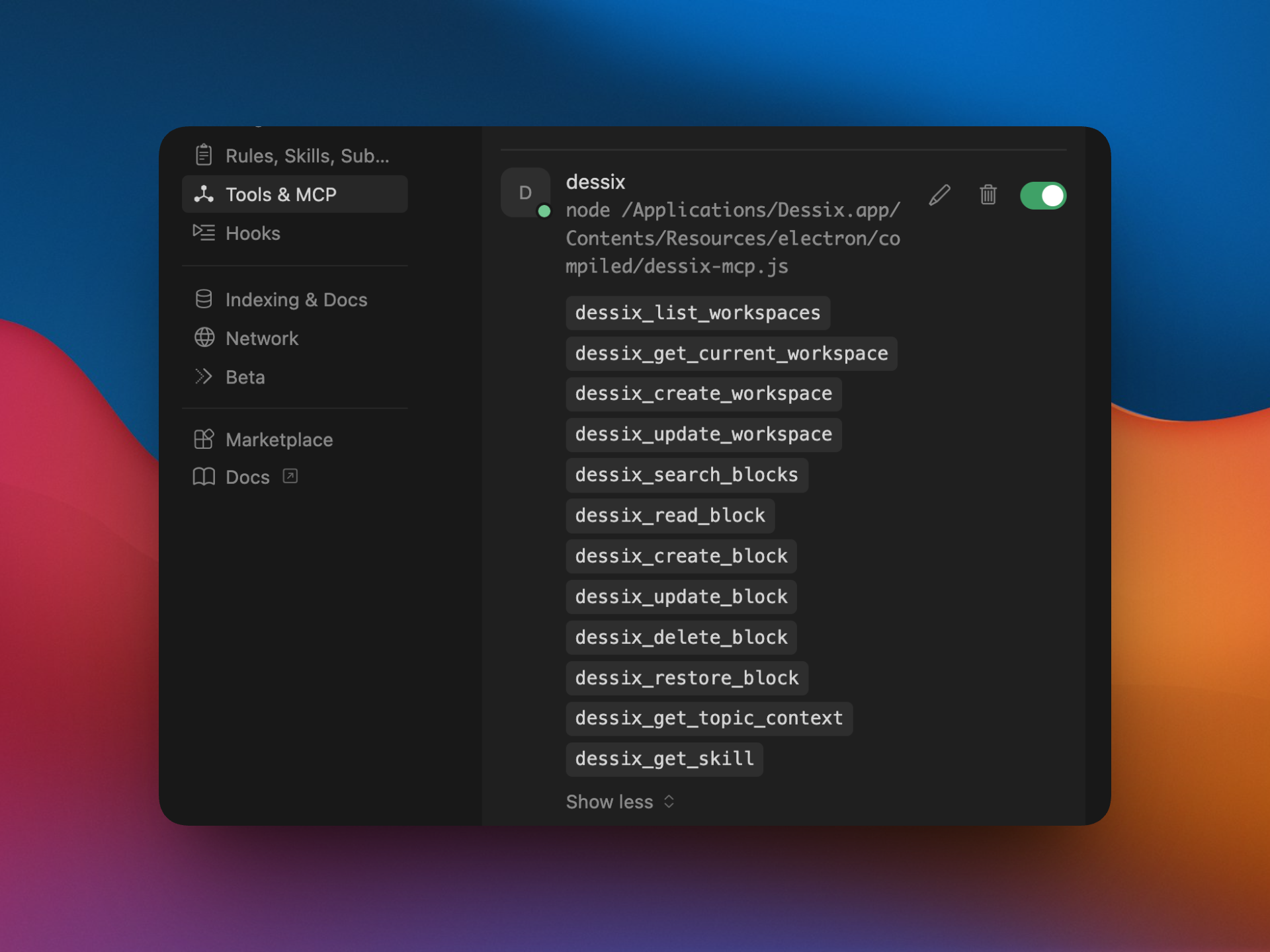
After configuring, open Settings → Tools & MCP in Cursor and make sure the dessix server is enabled (the toggle should be green).
Claude Code
Paste and run the copied command in your terminal, then type /mcp to confirm the connection.
Talk to AI like this
Once connected, just chat with AI in natural language via Cursor, Claude Code, or any MCP client. It will automatically use Dessix capabilities. Here are some examples:
| What you say | What AI does |
|---|---|
| Show me my workspaces | Lists your workspaces |
| What topics have I discussed recently? | Searches and lists your topics |
| Find my notes about "product pricing" | Searches by keyword |
| Have I written anything about user retention? | Searches by meaning |
| Create a new note titled "Weekly meeting notes" | Creates a new note |
| Rename that note to "Q2 Plan" | Updates the note |
| Delete that test note | Moves it to trash (recoverable) |
| Restore the one I just deleted | Restores from trash |
| Let's continue the discussion about "growth strategy" | Finds the related discussion and continues |
| Use my "Weekly Report" action to write this week's report | Uses your preset action |
| Group these scattered notes by topic | Creates folders and files items into them |
Move this note into the "Product Plan" folder | Moves the item into the specified folder |
What's inside the "Test" folder? | Lists the folder's direct children |
Tips
- First time? Say "show me my workspaces" to confirm the connection works.
- Deletion moves items to trash by default — just say "restore it" if you change your mind.
- Workspace getting cluttered? Say "group these notes into
foldersby topic" and AI will createfoldersand file things in for you.