
Skill
Desktop only
Skills require the Dessix desktop app to be running and are only available on desktop.
The Actions and Scenes you create in Dessix are more than prompts — they can serve as skills that AI clients (like Cursor, Claude Code, and OpenClaw) call directly.
A single MCP tool performs one operation. A skill chains multiple operations into a complete workflow, letting AI drive a task within the boundaries you define.
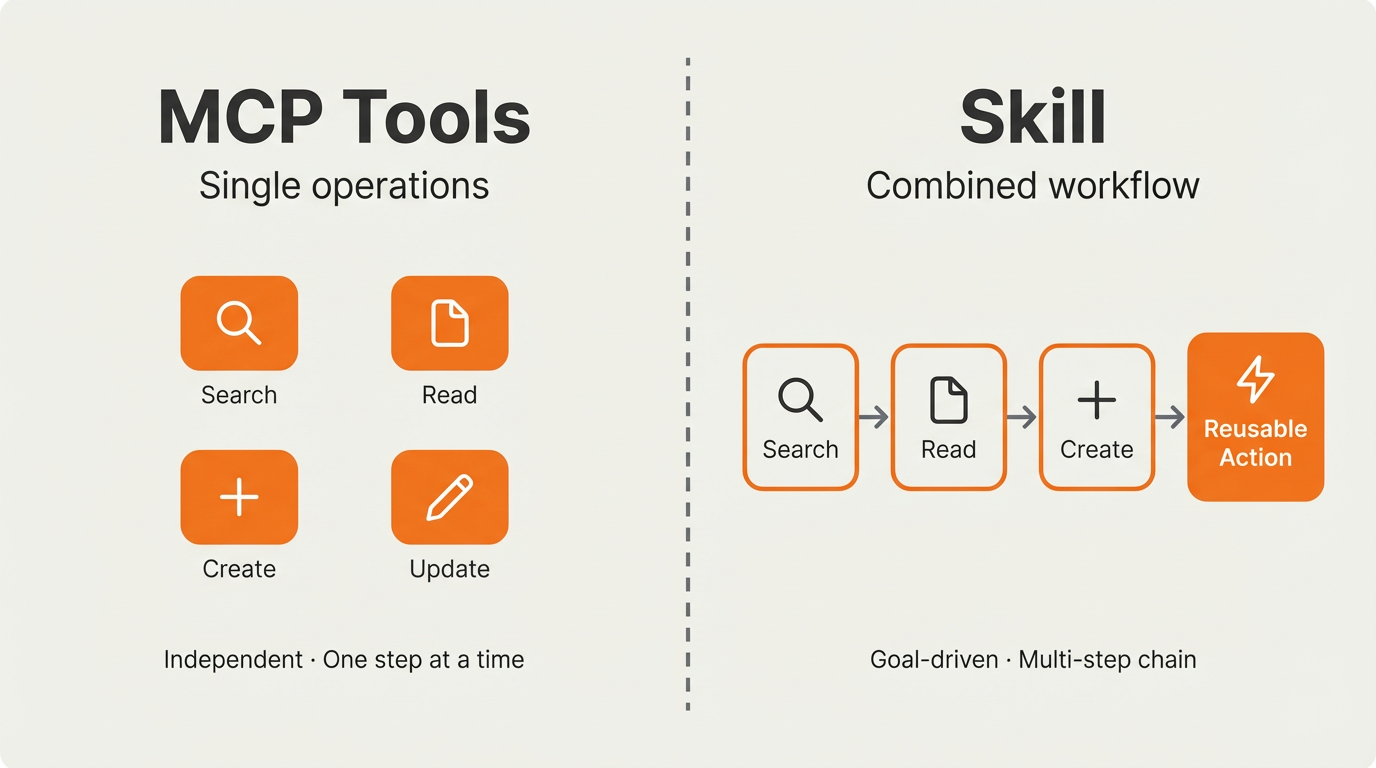
How skills relate to MCP
| Layer | What it does | Example |
|---|---|---|
| MCP tool | Single read or write operation | dessix_search_blocks, dessix_create_block |
| Skill | Multi-step composition toward a clear goal | Distill a discussion into a reusable Action |
The MCP page covers individual tools. This page focuses on combining them to achieve more.
Enable skills on different platforms
Dessix provides a skill connector (@dessix/skill) that lets AI clients call the Dessix desktop MCP bridge directly via a local socket — no extra JSON-RPC middleware required.
Choose the installation method for your platform.
Prerequisites
- Node.js v18+
- Dessix desktop app running (the bridge is served by the Electron process)
- (Optional) Set the
DESSIX_MCP_BRIDGE_ENDPOINTenvironment variable to override the default socket path
Cursor / Claude Code
Both Cursor and Claude Code load Dessix skills from a skill folder.
npx skills add DessixIO/skillgit clone https://github.com/DessixIO/skill.git
cd skill# Copy SKILL.md, scripts/, and references/ into your project directoryAfter installation, verify the connection:
node scripts/dessix-bridge.mjs healthOpenClaw
OpenClaw manages and distributes skills through the ClawHub skill registry.
Install OpenClaw
curl -fsSL https://openclaw.ai/install.sh | bashiwr -useb https://openclaw.ai/install.ps1 | iexnpm install -g openclaw@latest
openclaw onboard --install-daemonInstall the Dessix skill
npm i -g clawhub
clawhub install dessix-skillgit clone https://github.com/DessixIO/skill.git ./skills/dessix-skillgit clone https://github.com/DessixIO/skill.git ~/.openclaw/skills/dessix-skillOpenClaw skill loading precedence: ./skills (workspace) > ~/.openclaw/skills (global) > bundled skills. Start a new session after installation for the skill to take effect.
Typical workflows
Skill discovery
Goal: See what reusable Actions and Scenes exist in your current workspace.
| Step | What you say | What AI does |
|---|---|---|
| 1 | Show me the current workspace | Retrieves workspace info |
| 2 | List all Actions and Scenes | Searches blocks by type |
| 3 | Summarize each skill for me | Reads each skill's content and outputs a catalog |
Useful when onboarding to a new project or reviewing existing knowledge.
Distill a discussion into a skill
Goal: Turn insights from a Topic discussion into a new, reusable Action or Scene.
| Step | What you say | What AI does |
|---|---|---|
| 1 | Extract the context from my "Growth Strategy" topic | Retrieves the full conversation history |
| 2 | Find related notes to supplement it | Searches by meaning for supporting content |
| 3 | Create a "Growth Analysis" action based on all of this | Drafts and creates the Action |
Insights no longer stay buried in conversations — they become repeatable AI behaviors.
Skill maintenance
Goal: Review and refresh existing Actions and Scenes to keep them accurate.
| Step | What you say | What AI does |
|---|---|---|
| 1 | Find all Actions related to "weekly report" | Searches for matching Action blocks |
| 2 | Check if this Action's content is still valid | Reads and analyzes the current content |
| 3 | Change the output format to a Markdown table | Updates the Action content |
Regular maintenance reduces drift between what a skill says and what you actually need.
Auto-organize and archive
Goal: Group scattered notes from the root into folders by topic, keeping entropy in check.
| Step | What you say | What AI does |
|---|---|---|
| 1 | Show me what's lying around at the root | Lists direct children of the current folder, spots loose items |
| 2 | Group them by topic and propose an archive plan | Reads titles and content, suggests categories |
| 3 | Create the folders and move the matching notes in | Creates folders in batch, then moves each note into the right one |
Useful when a workspace has been accumulating for a while and starts to feel scattered.
Things to keep in mind
- Start with read-only workflows (skill discovery) to confirm everything works before writing.
- Before creating or editing an Action or Scene, confirm the target workspace and content scope.
- The skill connector connects to the Dessix desktop app directly — no separate MCP configuration required.