
Multi-Window
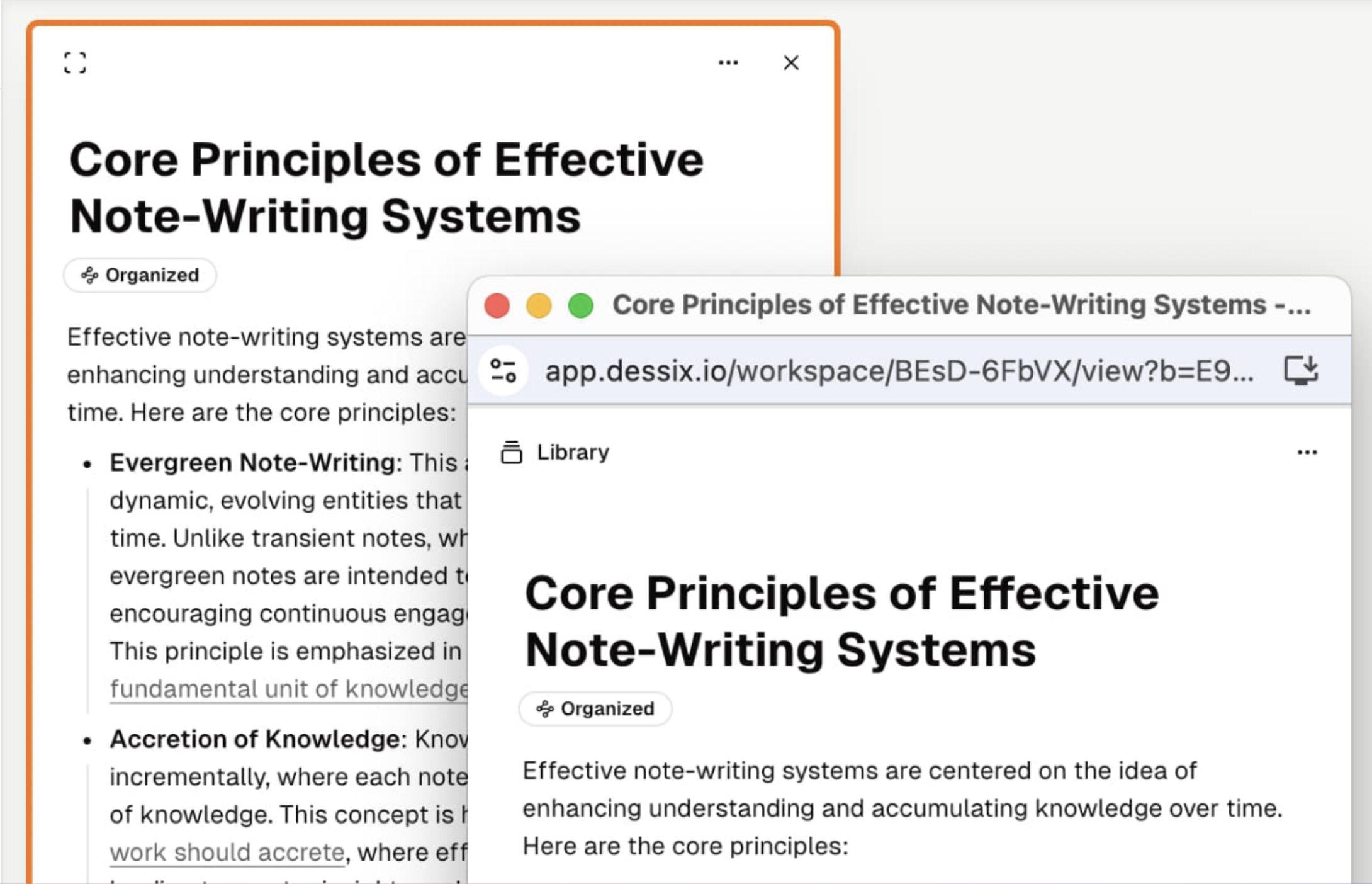
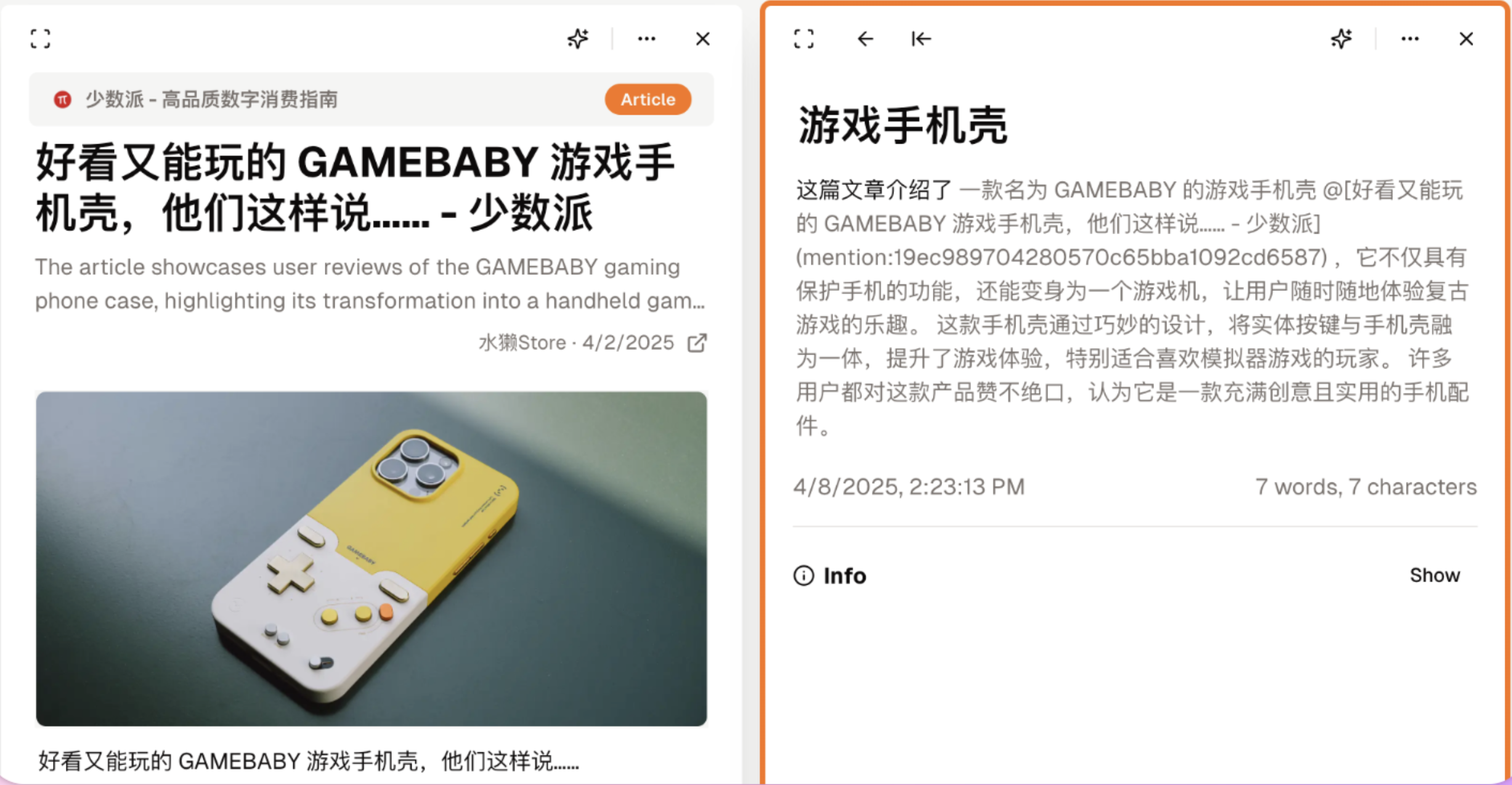
You can open one or more notes in independent windows and display them side by side on the screen.
Like spreading multiple materials on a desk, comparing them while viewing.
Core Features
Independent Window Focus
Open a single note in an independent window:
- Block out other content distractions, focusing only on the current note.
- Automatically hide non-essential interface, support full-screen mode, maximize reading area display.
- Let AI see only the content in the current window.
Usage Scenarios:
- When you need to deeply edit a long article.
- When you need to focus on reading a document.
- When you need full-screen display or presentation.
Side-by-Side Comparative Research
Open multiple windows side by side simultaneously:
- Compare different viewpoints from multiple documents
- Write while viewing reference materials
- Handle multiple related tasks simultaneously
Usage Scenarios:
- Compare multiple reference documents when writing papers
- Compare original and translated text when translating
- Summarize from multiple sources when organizing materials
How to Use
- Click the
···button in the upper right corner of the note - Select
Open in New Window - The note will open in a new window
Display Side by Side
- Open multiple independent windows
- Drag windows to both sides of the screen for automatic split-screen
- Or manually adjust window size and position
Multi-Window Advantages
Efficiency Boost:
- No frequent switching - Content at a glance
- Parallel processing - Multiple tasks simultaneously
- Real-time sync - All window modifications update in real-time
Guaranteed by Local Data:
- Lightning response - No waiting for remote loading
- Smooth operation - Regardless of window count
- Instant context retrieval when AI is called